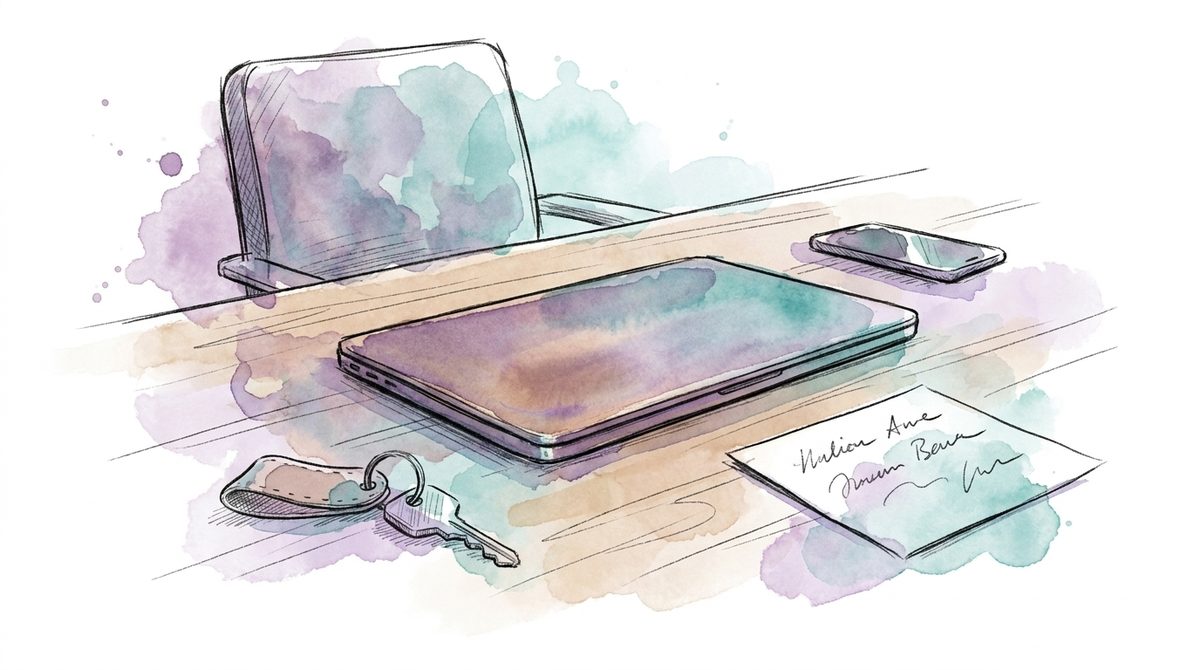
Someone resigned on Friday. On Monday the managing director sits down with the IT lead and asks a question that sounds harmless: what happens to the laptop now?
The device is still at the employee's home. It holds quotes and credentials saved in the browser. There is no conflict, the departure is friendly. Still, nobody in the room knows who is allowed to clear that device, or whether it is even technically possible any more.
This is the moment when many SMEs think about device management for the first time. And it is the worst possible moment for it.
From here, an Intune rollout looks like a technical project: check licences, enrol devices. That is the easy part. Intune asks you two questions no tool can answer for you, and in our experience the rollout hangs on exactly those: which devices may see company data? And who may clear a device?
An Intune rollout means managing, not defending
Intune is Microsoft's service for centrally managing devices and apps. You define how a laptop or a phone has to be configured, which apps belong on it, and you can intervene remotely. Useful, unspectacular. Detecting or blocking attacks is not part of it, that is Defender. Two different things on the same bill.
And the bill is the first point worth looking at. In most SMEs we see, Intune is already paid for. Microsoft documents explicitly for Business Premium that subscribers are licensed to use full Intune capabilities for iOS, Android, Mac and other cross-platform device management, so not a stripped-down variant (Microsoft Learn). For the larger plans, Microsoft states that most organisations get Intune as part of a Microsoft 365 bundle, such as E3 or E5, rather than buying it separately (Microsoft Learn).
Which basically means: if you run Business Premium and a third-party provider sends an annual invoice for device management alongside it, you are paying for the same function twice. In our experience this double payment turns up faster than any technical gap, and a glance at the licence list is enough to check it. We took apart which tier you are actually running in Business Premium vs E5.
The first decision: company device or personal device
Intune knows two paths for this question, and they differ more than the product names suggest.
With a company device, you enrol it. After that you can deploy apps and set profiles for Wi-Fi and VPN, and the removal commands are available to you.
With a personal device, it also works without enrolment. According to Microsoft, app protection policies can be used independently of any device management, and they only apply in a work context. Microsoft describes it as protecting company data without touching personal data (Microsoft Learn). In practice that means Outlook and the Office apps require a PIN, and company data can be removed from the app without deleting the app itself.
The honest part of this variant is in the same source. On devices without enrolment, Intune deploys no apps and provisions no certificate profiles, and company Wi-Fi and VPN are not available there. The full wipe and the selective wipe through device management work only on enrolled devices. The person still needs an Intune licence, by the way. So "we only do app protection, that costs nothing" is not true.
The technical fork is quickly explained. Something else hangs in practice: nobody has decided which category the sales manager's phone belongs to. That decision is not made in the console, it is made in an agreement that someone has to write down and someone has to approve. As long as it is missing, every rollout produces a list of devices you are not allowed to do anything with. The same pattern as with the asset inventory: the tool shows you something, a person with a mandate has to act.
Who may wipe a device?
Whoever holds the right role in Intune may wipe. Microsoft names the Help Desk Operator role or a custom role with the Remote tasks/Wipe permission. On top of that, multiple administrative approval can be switched on, which means a second administrator must approve the action before it proceeds. Who holds that role in your company is not decided by Intune. That is decided by management.
Behind this sit two buttons that are often confused.
One resets the device to factory settings and removes all data, apps and configurations in the process, personal and organisational alike (Microsoft Learn). The other removes company data without resetting the device. Microsoft words this action as unenrolling the device and removing managed apps, settings and profiles "while preserving personal data". And further: the user's personal data is not removed from the device (Microsoft Learn).
Translated: company data gone, holiday photos stay. That is the button for personal devices, and it defuses the worry that usually blocks this discussion in an SME. Nobody has to flatten an employee's private phone to get company data back off it.
Mixed setups call for care. On an Android device with a personal work profile, the action removes everything in the work profile, data and apps included. Personal items stored there are gone with it. The agreement therefore belongs before the moment the device sees company data.
The day it counts
Both removal commands only take effect the next time the device checks in with Intune. Until then it still sits in the management console as if nothing had happened. A laptop left on a train that never comes online again is not cleared by any click. In that case the encryption on the device is what works. The button is hygiene, not rescue.
On top of that comes a trap Microsoft documents itself, and which in our experience almost nobody reads before triggering it. If the Intune object of a Microsoft Entra joined device protected by BitLocker is retired or deleted, Intune removes the key protectors. Microsoft therefore recommends backing up the BitLocker recovery key and the local administrator account credentials beforehand (Microsoft Learn). On a Microsoft Entra joined Windows device there is more: after the action, signing in with the Entra account is no longer possible. Getting to the person's local data requires safe mode and a local administrator account.
So the button works. Whether you can still get at the data afterwards is decided by preparation that has nothing to do with Intune, and that in many companies belongs to nobody.
And one detail for the bookkeeping of access: on iOS and macOS devices, the device record in Microsoft Entra ID remains after the retire action. Microsoft recommends removing it separately so that no stale records and no lingering access permissions are left behind. If you hang your sign-in rules on device state, and that is exactly what Conditional Access rules do, do not forget that record.
The device is not the account
Back to the laptop from the beginning. It held credentials saved in the browser, and that is the point where device management stops being useful.
A successful wipe does not take away the person's access to the mailbox. Blocking the account and ending the signed-in sessions are tasks on the identity. An offboarding handled through device management is half handled, and at the slower half.
From this follows an order that contradicts the technology and holds up in practice: the account first, then the device. You can disable the account in a minute, and the effect is immediate. The device waits until it checks in, and until then your click changes nothing. In the reverse order, the first hours after the departure leave open exactly the gap you wanted to close.
For the offboarding list that means two lines, each with a name next to it. We describe the same pattern in phishing prevention, where access ends at the session that is still open.
What you get to leave out
The pleasant part of this building site: it grows downwards, not upwards.
A second management tool alongside the Intune you already pay for is the most common double purchase we find in this corner. Just as often, "device management" sits as its own monthly line in the IT provider's contract, without anything written down about what is being operated within it and who holds the role that may wipe. That is the question this line has to answer before you renew it. The same principle as in consolidating security tools: first clarify who operates something, then talk about the licence.
You do not need a separate inventory tool for devices either. Enrolled devices are the inventory. And there is no tool that spares you the two decisions from the beginning.
What does take work costs nothing: two names and a list. Who may wipe, and which devices count as company devices. If nobody in the company can carry that role, that points to the bigger gap and not to a tool problem. We described how to run operations without your own security team in IT security without a security team, and that is exactly where our security management comes in: the roles and routines a tool assumes but does not bring with it.
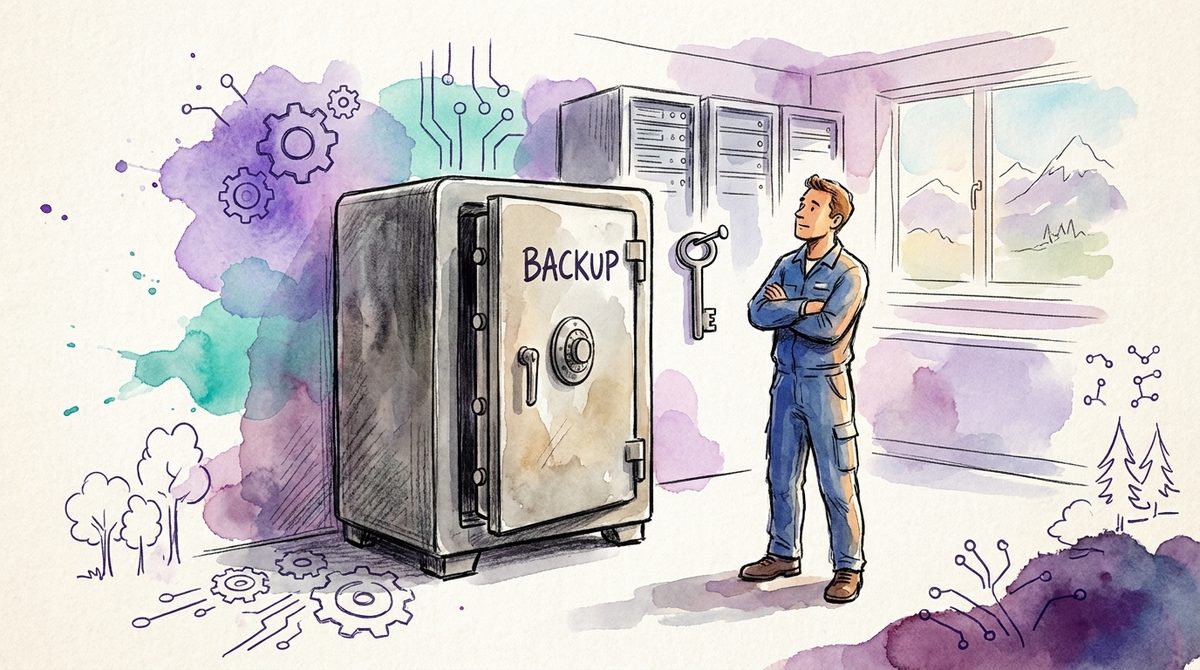
One thing belongs in the same week: check recovery at the same time. A cleared device is annoying, a cleared device without a backup is expensive. We covered that in ransomware protection for SMEs.
Two names and a key
The Monday meeting from the beginning usually ends with the intention to "take a proper look" at device management. After that, little tends to happen, because the topic looks like a project.
It is smaller than that. Two names, a list of devices, and recovery keys that sit where somebody can find them. You have probably already paid for the technology.
If you want to know what this looks like in your company, spend an hour on it with us. A first conversation is non-binding.
When someone resigns on Friday, who in your company presses the button on Monday?
Frequently asked questions
Is Intune included in Microsoft 365 Business Premium?
Yes. Microsoft documents that Microsoft 365 Business Premium subscribers are licensed to use full Intune capabilities for iOS, Android, Mac and other cross-platform device management. Intune is also part of the bundle in larger plans such as E3 and E5. Paying a third-party provider for device management alongside it means paying twice.
What is the difference between wipe and retire in Intune?
Wipe resets the device to factory settings and removes personal and organisational data, apps and configurations alike. Retire removes only the company data and unenrols the device, while the user's personal data stays on the device according to Microsoft. Retire is therefore the right command for personally owned devices.
Do personal devices have to be enrolled in Intune?
No. According to Microsoft, app protection policies work independently of any device management and apply only in a work context. Without enrolment, however, Intune deploys no apps, provisions no certificate profiles and supplies no company Wi-Fi. Full and selective wipe work only on enrolled devices. The person still needs an Intune licence.